> ## Documentation Index
> Fetch the complete documentation index at: https://guides.heyallset.com/llms.txt
> Use this file to discover all available pages before exploring further.
# Paying by Card
> Learn how to process card payments using various methods, including payment links, QR codes, app-based payments, and manually recording transactions. Ensure secure and accurate payment tracking.
## Introduction
Processing card payments provides a fast, secure, and efficient way to complete transactions. Clients created through the Merchant Portal or Booking Portal are automatically labeled as open transactions, allowing for seamless tracking of pending and completed payments. By following these steps, you can navigate the sales section, select a client, and process the transaction using their preferred card payment method.
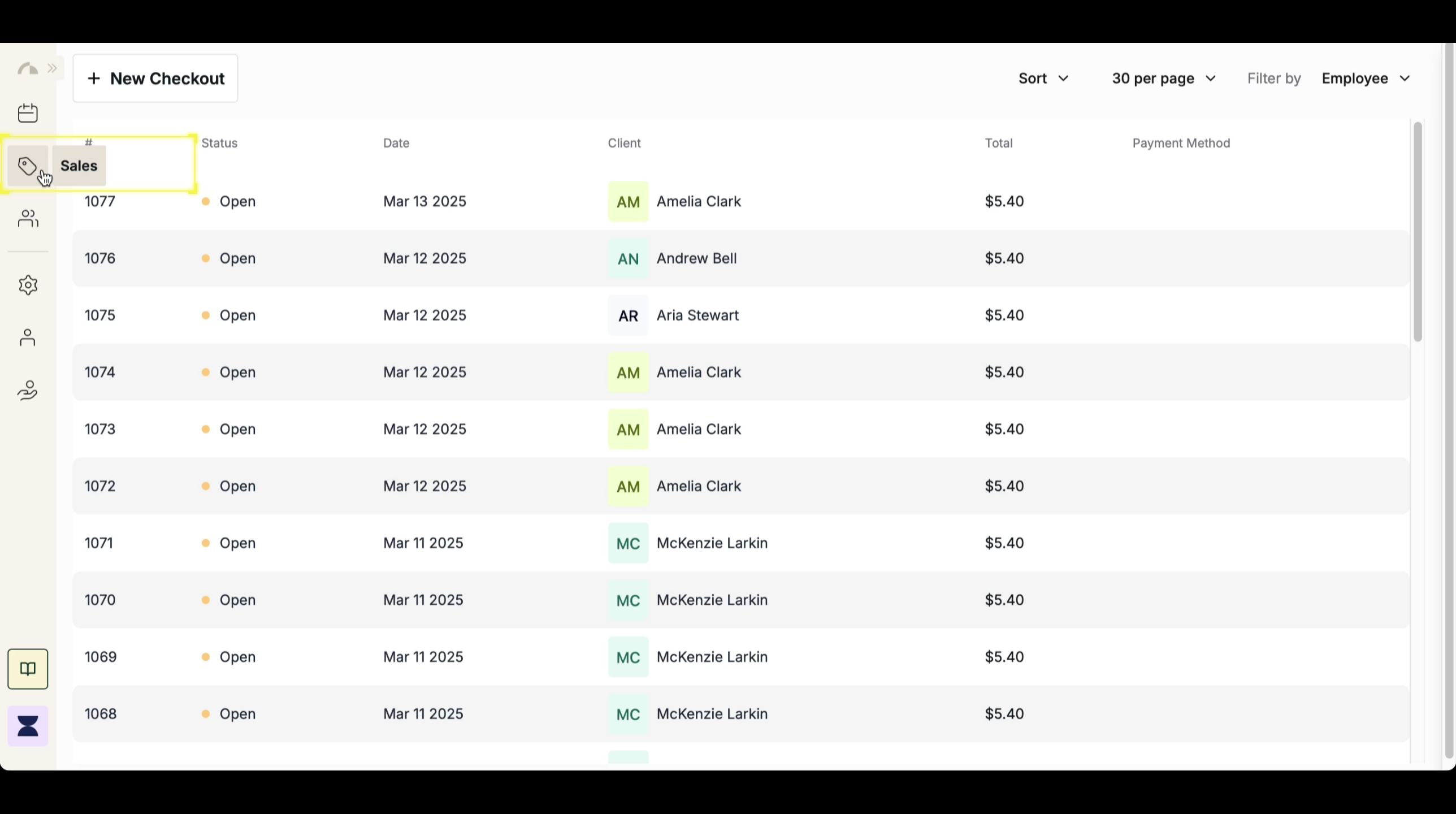
## Navigate to Sales
Click “[Sales](https://app.heyallset.com/sales)” in the side menu to access all transaction records. This section allows you to manage sales, track pending payments, and complete new transactions efficiently.
 ## Select a Client
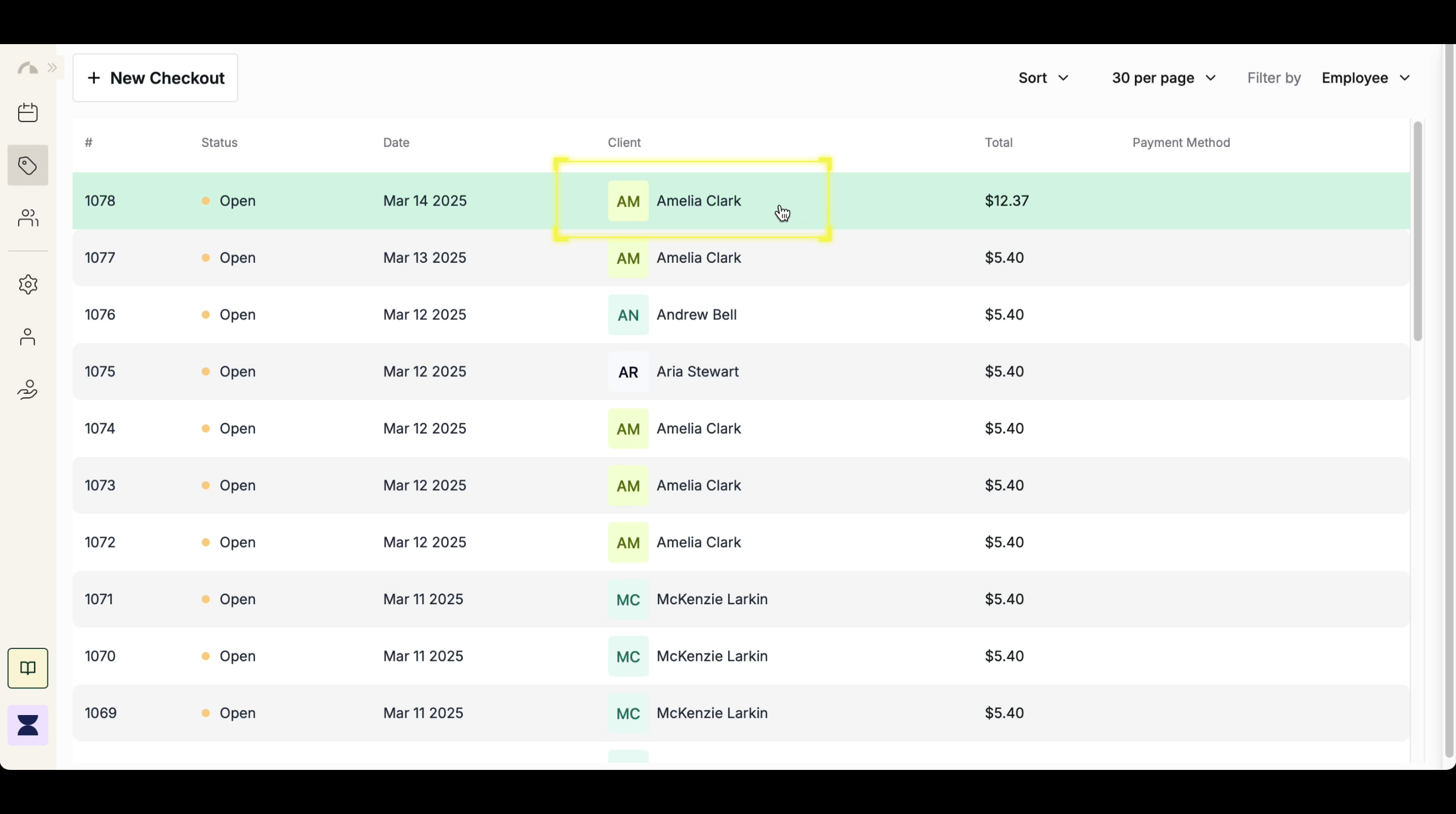
Search for the client associated with the transaction. If the client was created through the Merchant Portal or Booking Portal, they will be automatically added and labeled as an open transaction until payment is completed.
## Select a Client
Search for the client associated with the transaction. If the client was created through the Merchant Portal or Booking Portal, they will be automatically added and labeled as an open transaction until payment is completed.
 ## Confirm and Save Checkout
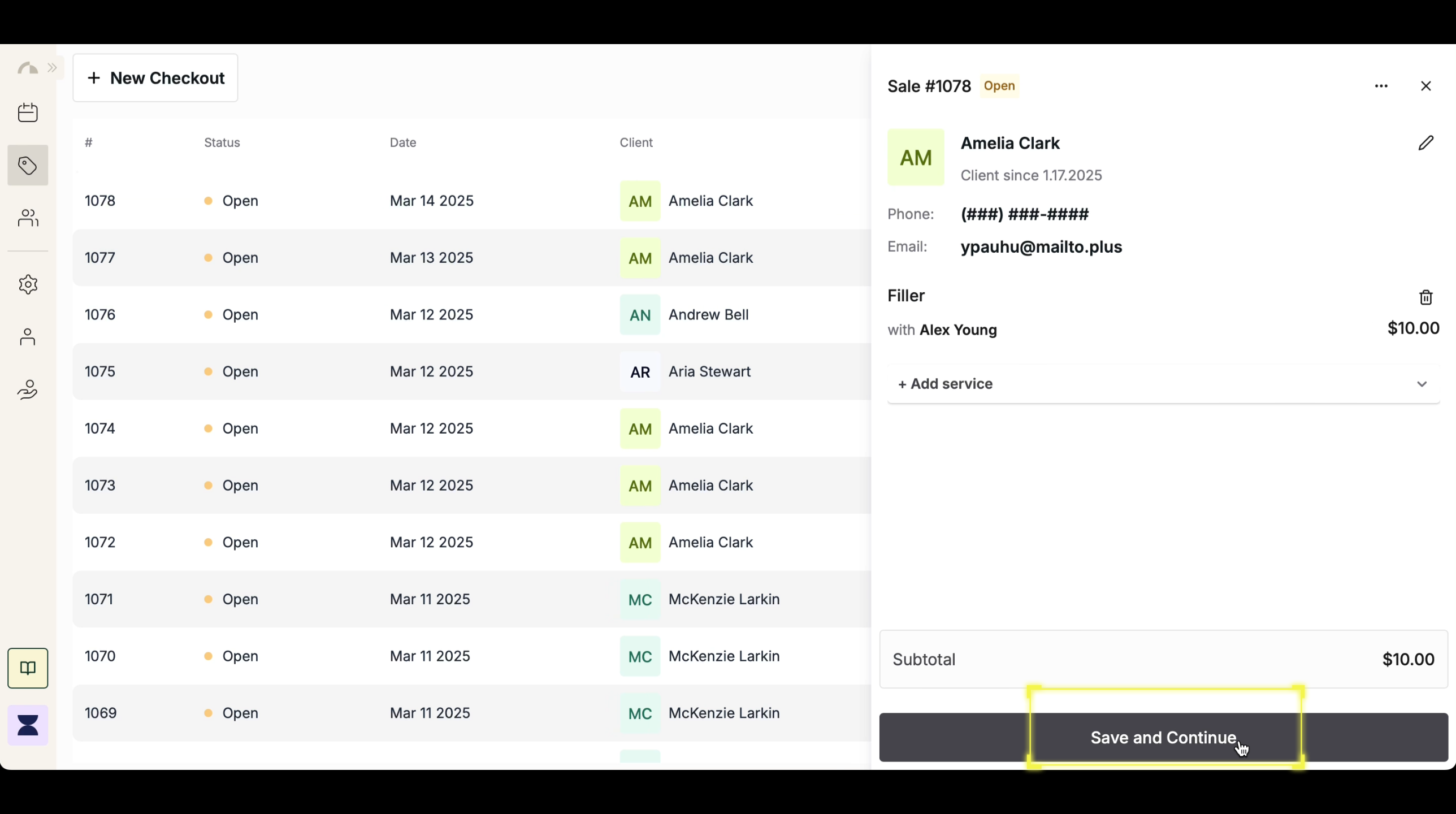
Review the client’s service details and confirm the checkout. This ensures the correct service and pricing are applied before proceeding with payment. Once confirmed, you can proceed with the card payment.
## Confirm and Save Checkout
Review the client’s service details and confirm the checkout. This ensures the correct service and pricing are applied before proceeding with payment. Once confirmed, you can proceed with the card payment.
 ## Select "Pay by Card"
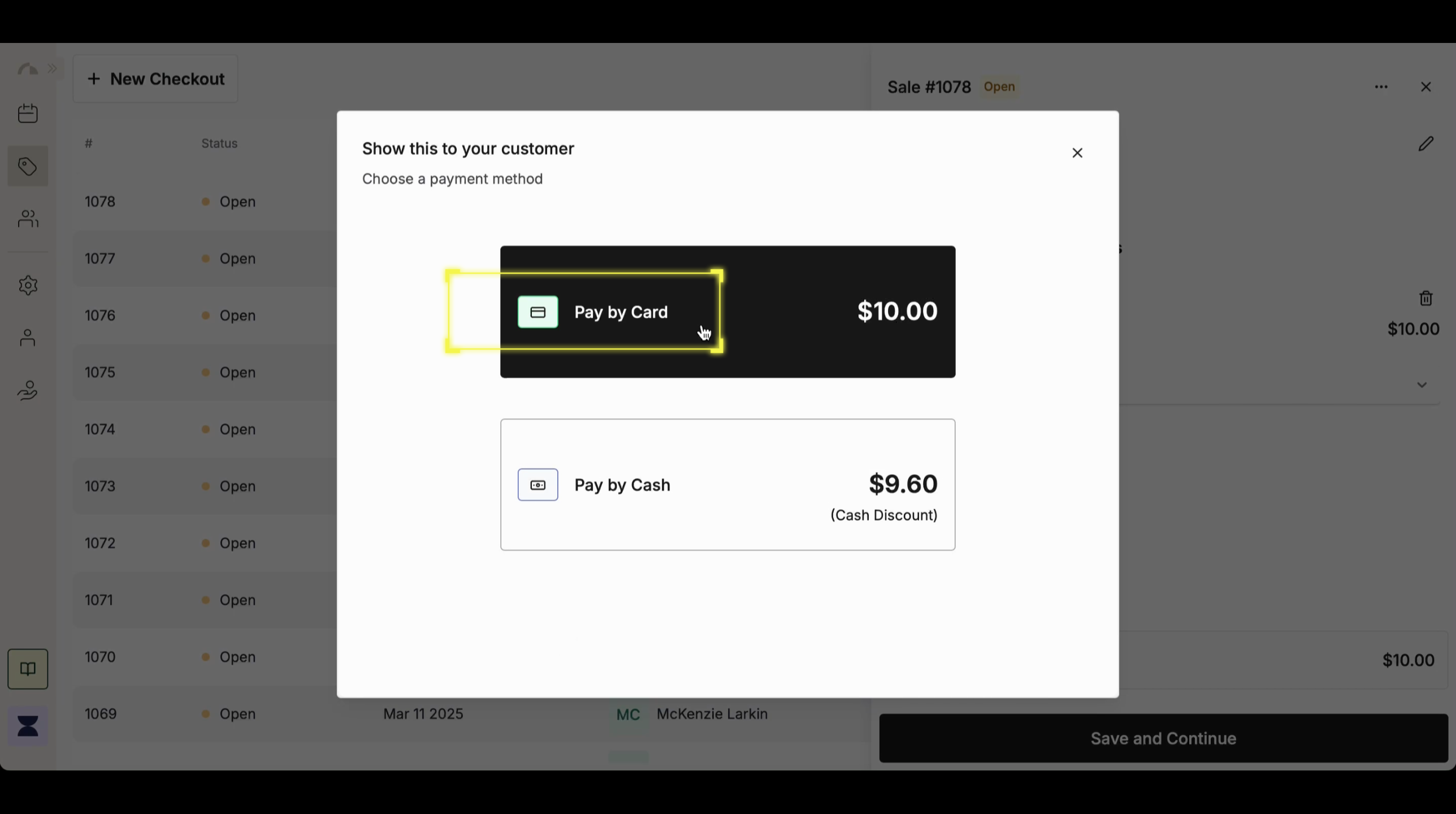
Click “Pay by Card” to proceed with the payment. This will allow you to choose from multiple card payment methods based on the client’s preference.
## Select "Pay by Card"
Click “Pay by Card” to proceed with the payment. This will allow you to choose from multiple card payment methods based on the client’s preference.
 ## Select a Tip Amount (Optional)
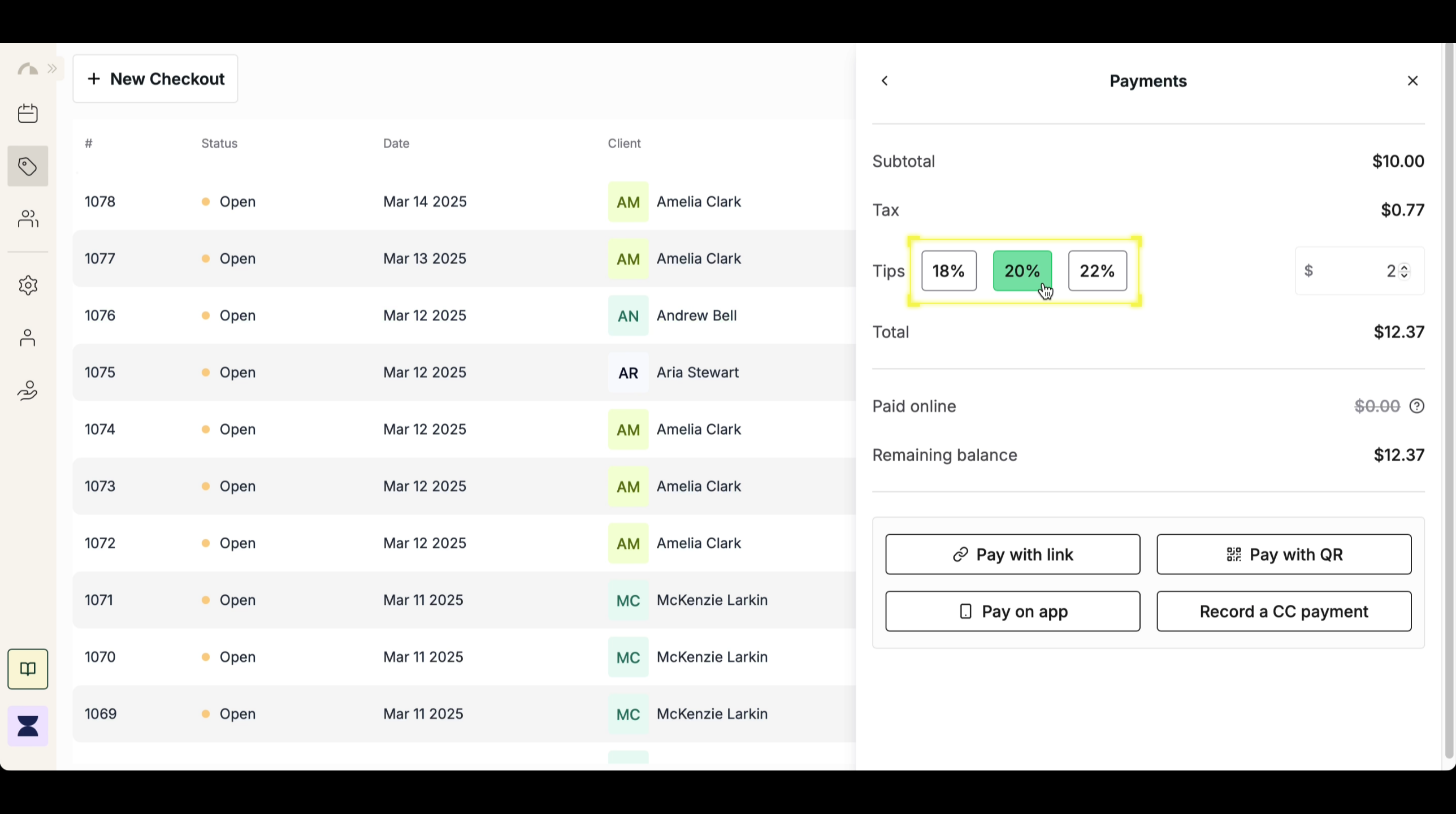
After selecting "Pay by Card", choose a preset tip percentage or enter a custom tip amount. The system will automatically adjust the total, ensuring that the tip is included before proceeding with payment.
## Select a Tip Amount (Optional)
After selecting "Pay by Card", choose a preset tip percentage or enter a custom tip amount. The system will automatically adjust the total, ensuring that the tip is included before proceeding with payment.
 ## Choose Payment Method
### Pay with Link
Select "Pay with Link" from the available payment options.
## Choose Payment Method
### Pay with Link
Select "Pay with Link" from the available payment options.
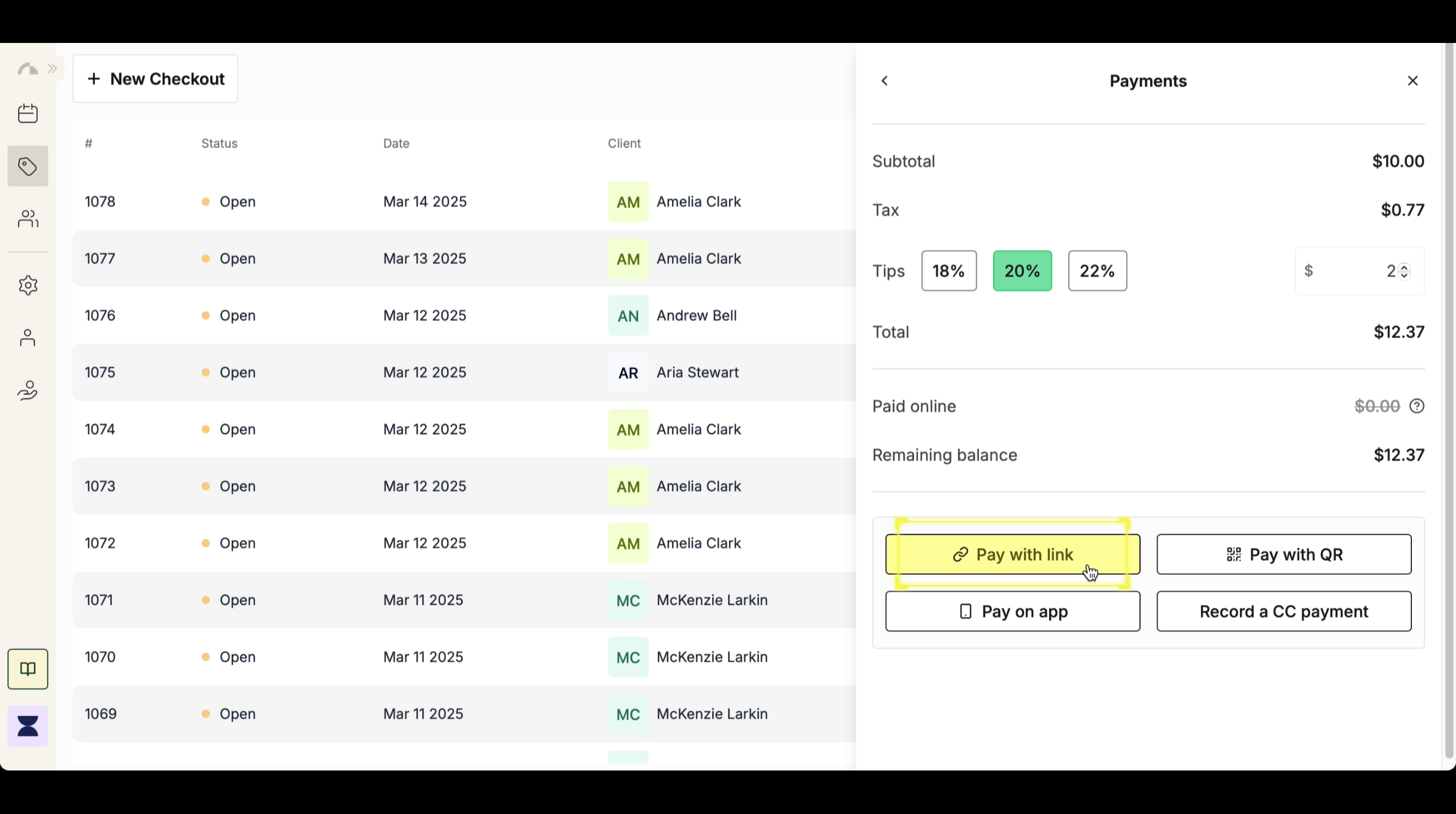 Copy the automatically generated payment link.
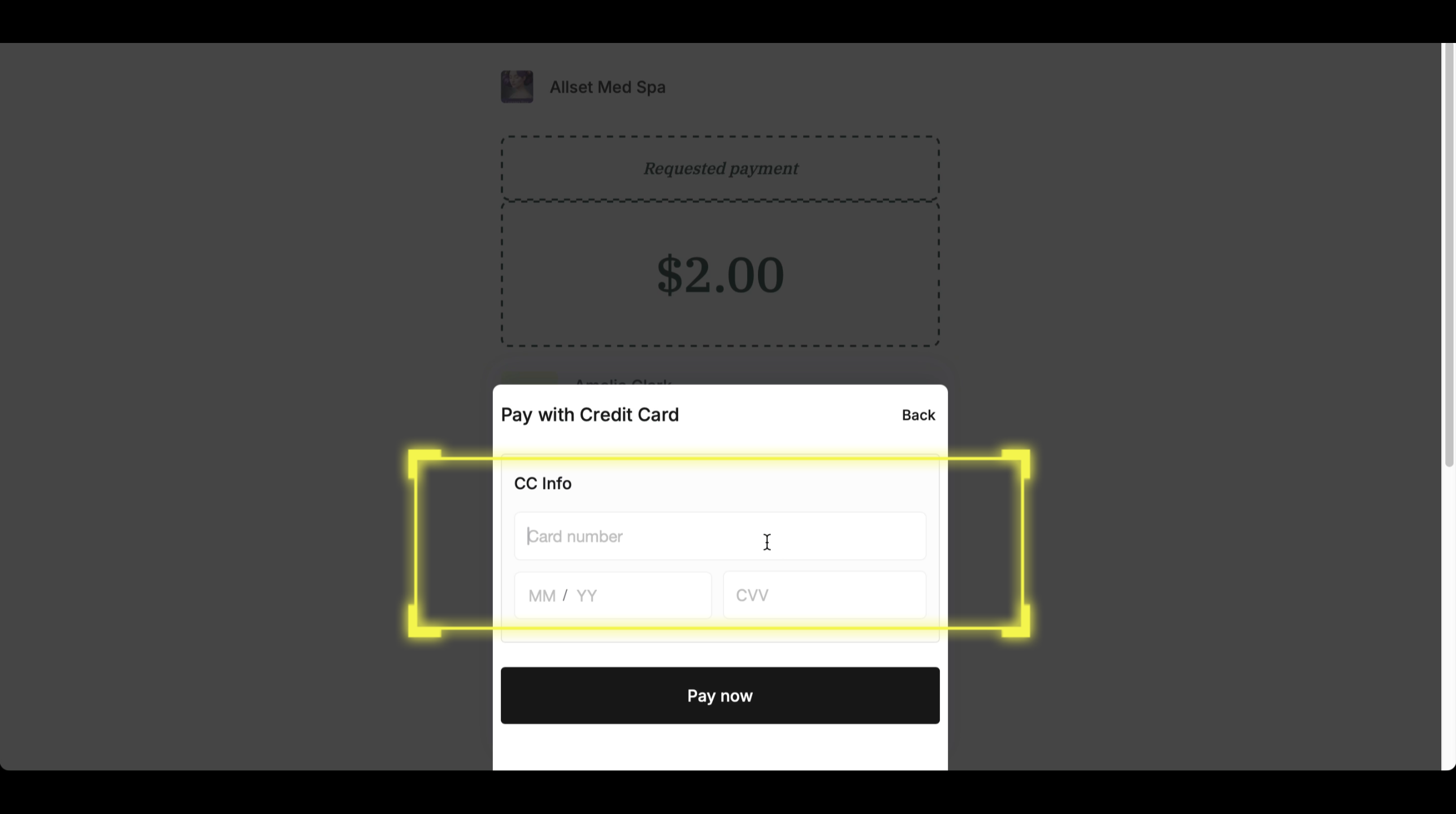
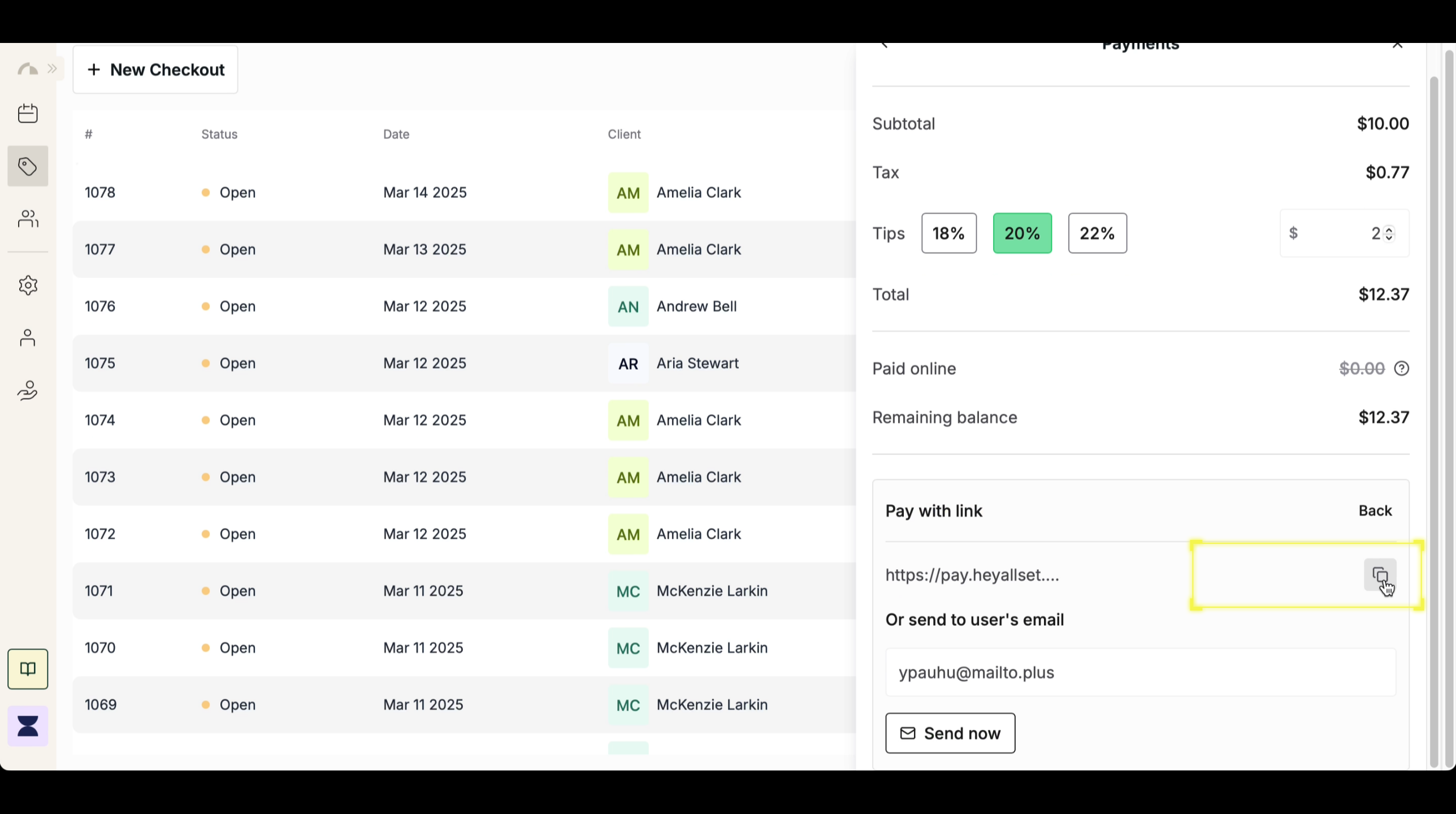 Send the payment link to the client via email, text message, or chat. This is how the site for the payment link would look like:
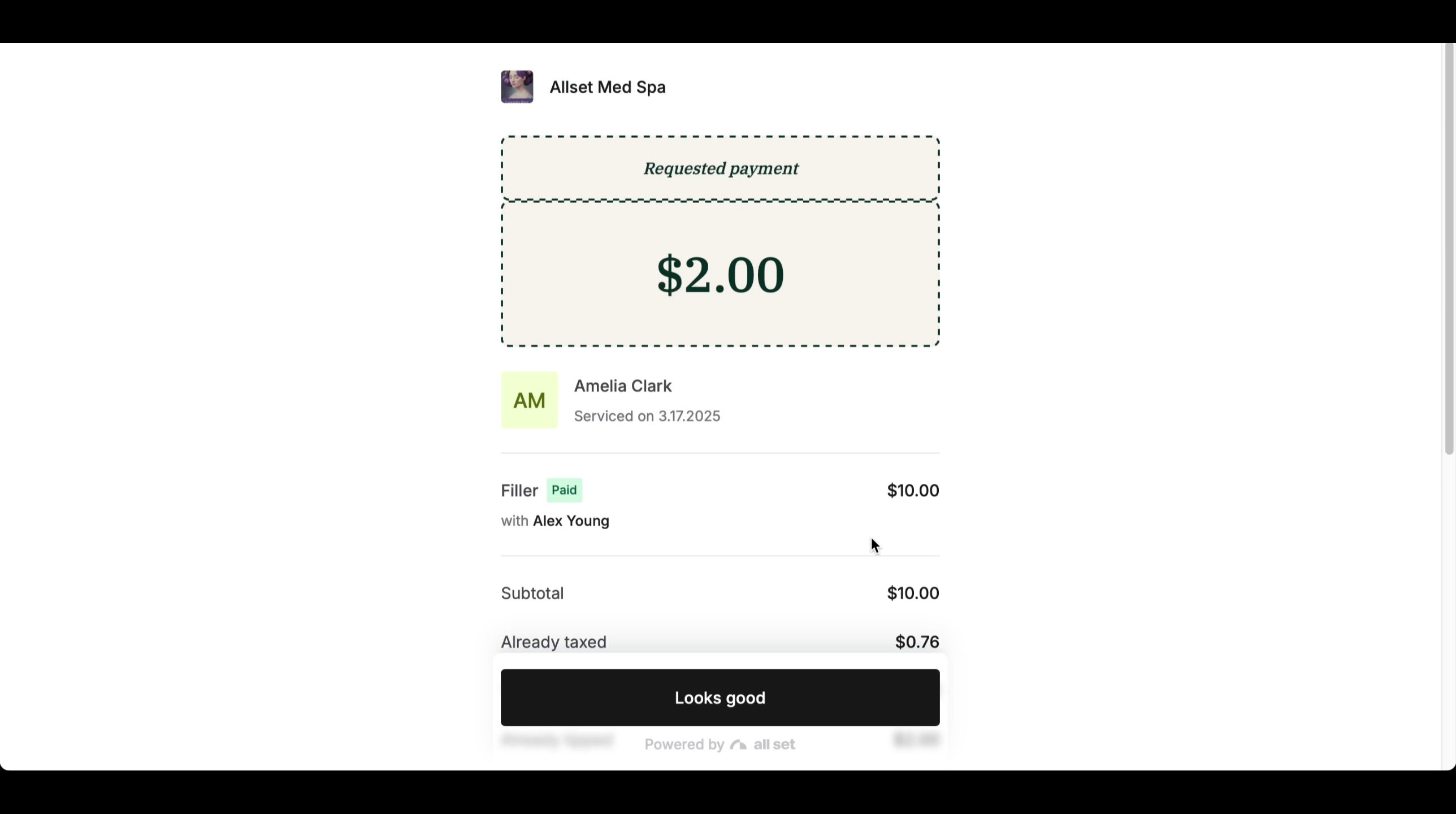 The client will enter their payment details, and once the transaction is fulfilled, the system will automatically close the sale.
 ### Pay with QR
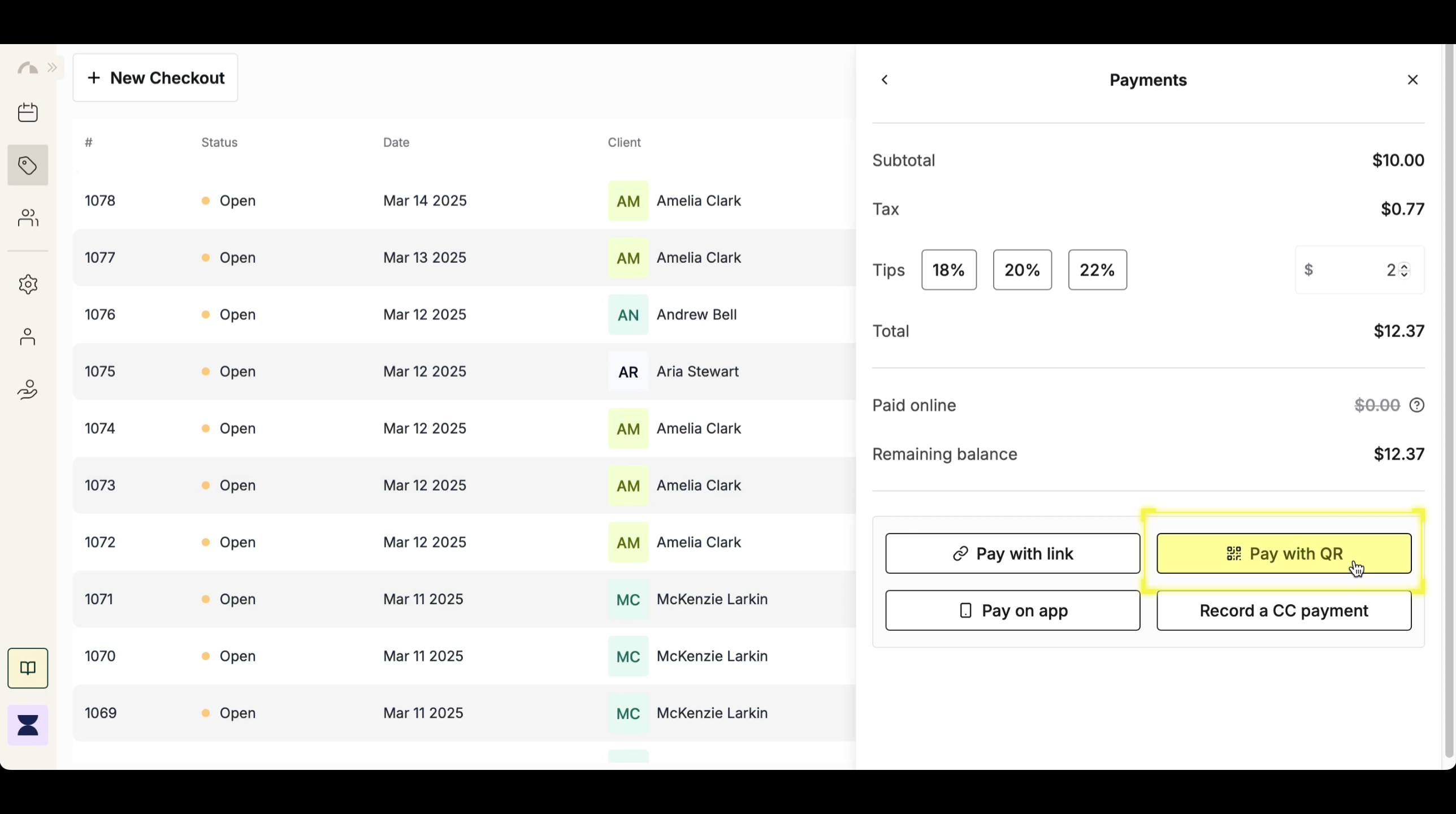
Select "Pay with QR" from the available payment options.
### Pay with QR
Select "Pay with QR" from the available payment options.
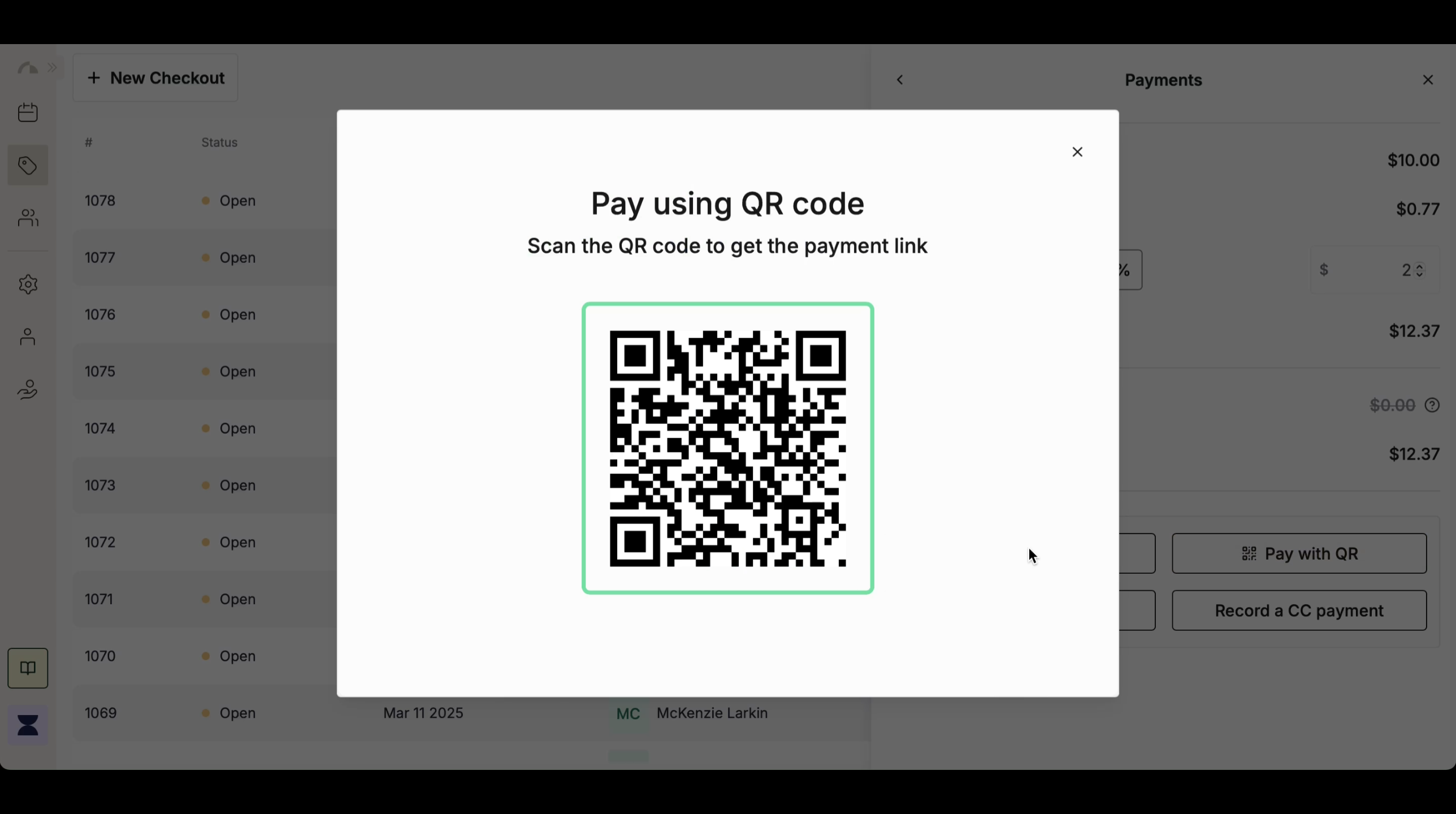
 The system will generate and display a QR code on the screen, allowing the client to scan and complete the payment using their mobile device. Once the transaction is fulfilled, the system will automatically close the sale.
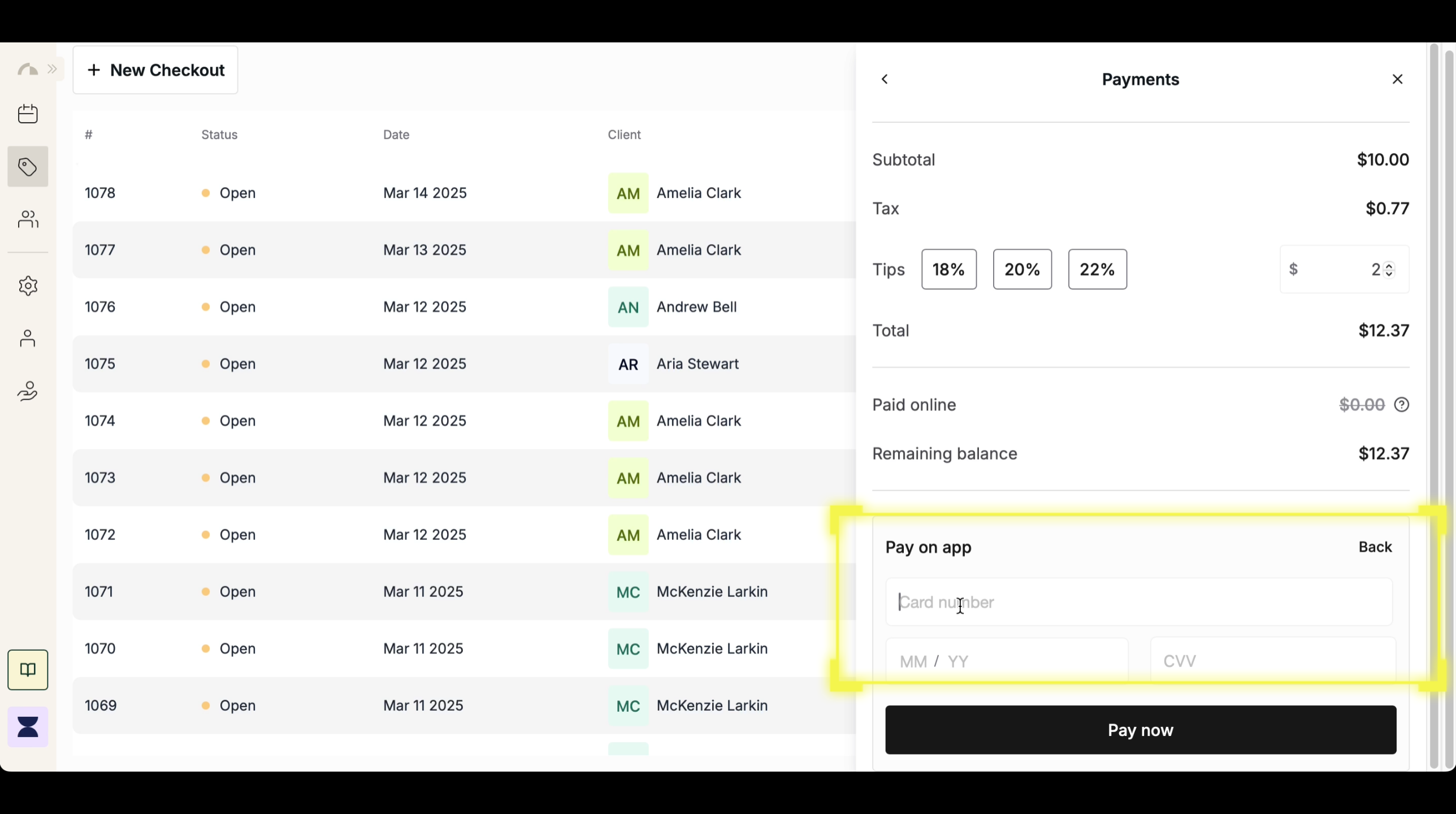
 ### Pay on App
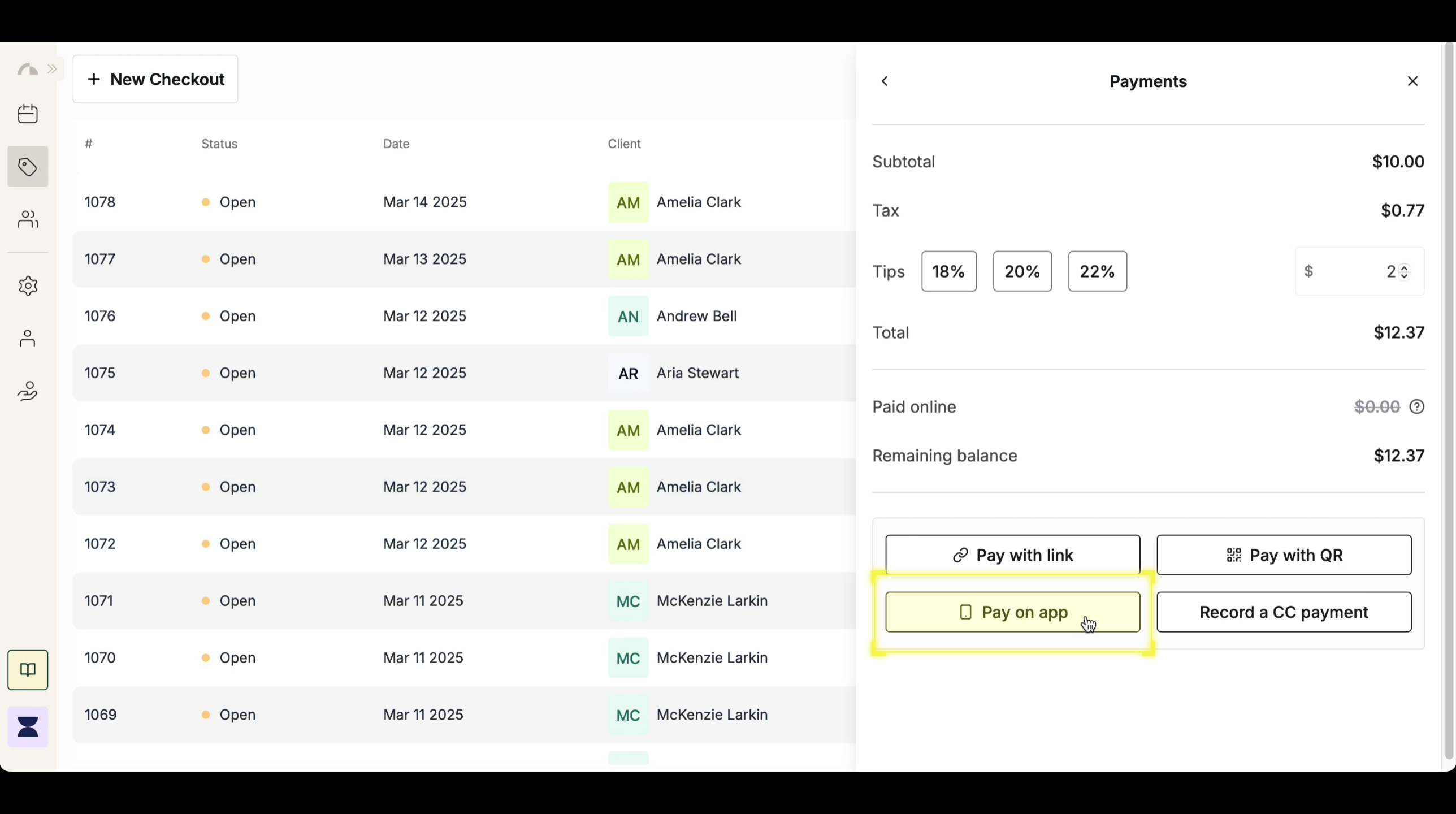
Select "Pay on App" from the available payment options.
### Pay on App
Select "Pay on App" from the available payment options.
 Enter the client’s credit card details into the app-based payment processor. Once the transaction is fulfilled, the system will automatically close the sale.
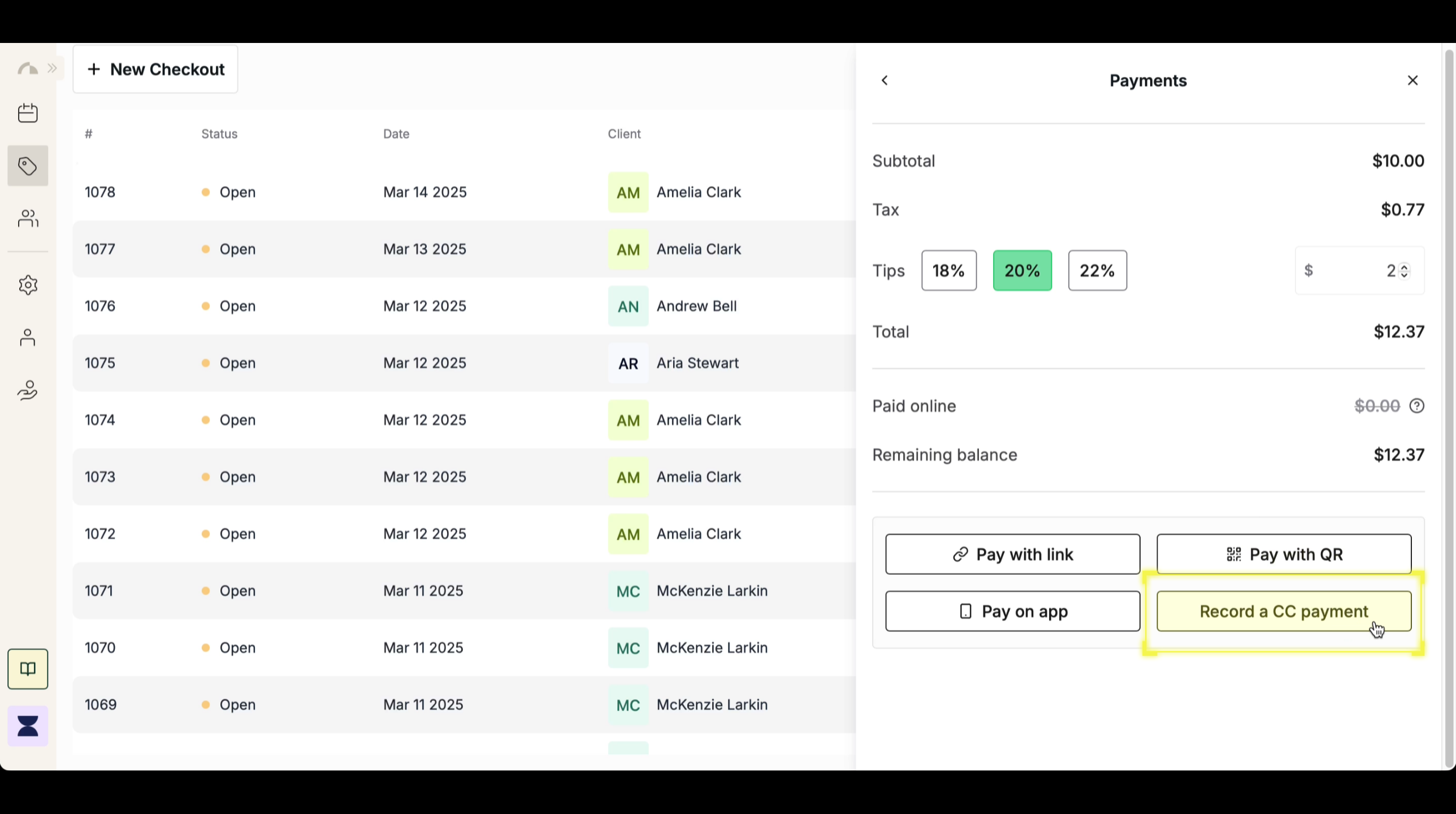
 ### Record a Credit Card Payment
Select "Record CC Payment" from the available payment options.
### Record a Credit Card Payment
Select "Record CC Payment" from the available payment options.
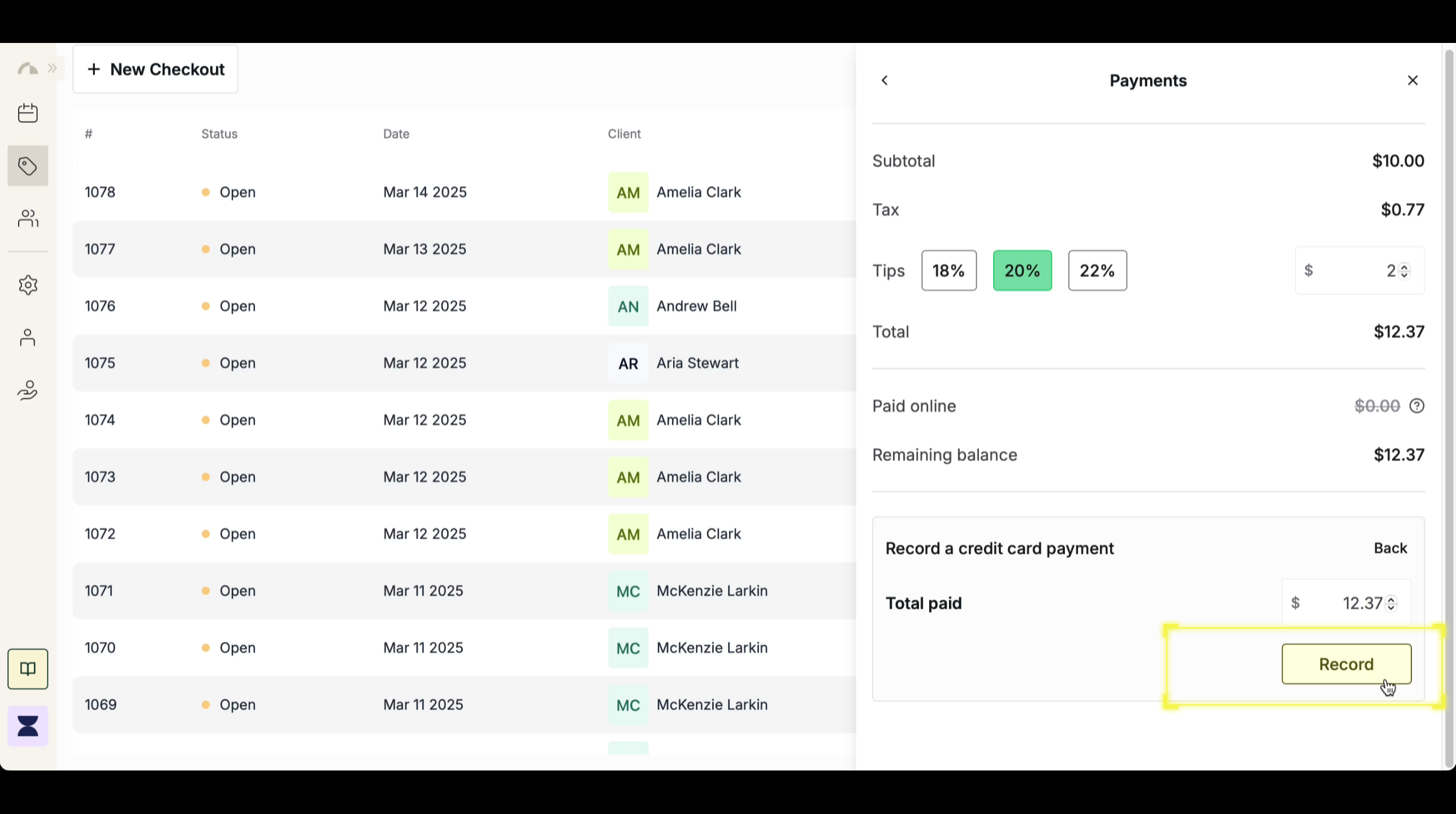
 Review the transaction details and click "Record" to complete the payment.
 ## Next Steps
Now that you've processed a card payment, you may need to void a sale transaction in case of payment errors, client cancellations, or incorrect charges. The next step is to learn how to void transactions, ensuring that all sales records remain accurate while allowing necessary adjustments when needed. Managing both successful and voided transactions effectively helps maintain a clear financial record and enhances the client experience.
## Next Steps
Now that you've processed a card payment, you may need to void a sale transaction in case of payment errors, client cancellations, or incorrect charges. The next step is to learn how to void transactions, ensuring that all sales records remain accurate while allowing necessary adjustments when needed. Managing both successful and voided transactions effectively helps maintain a clear financial record and enhances the client experience.